Yearly Archives: 2009

How to cheat MicroStrategy activation

I’ve not tried this, but this just flashed in mind when a friend asked this question while chatting. Basically, he wanted to learn MicroStrategy and I give away my v9 download and trial key. I do not know if I’m doing a license violation by that. I do not have MicroStrategy installed on my local machine and last attempt was a let down.

This is something that I suggest if you want to cheat (you can’t bypass) the 30 day trail. 30 days are not really sufficient to even understand MicroStrategy. MicroStrategy, Inc should think of getting a 3 or 6 month Learning License Serial Key for this mass of MicroStrategy learners and should give next versions Learner License Key to current client under this license.

Coming back to the issue: Use VMWare Server/Microsoft Virtual PC to safely cheat. VMWare is a Virtual OS product (it is much more then that too). You need to have a machine with better hardware configuration. Both are free downloads. MS stuff is free where as VMWare needs site registration.

  1. Create the basic Microsoft 2000 OS image of 25 GB.
  2. Install all latest SP/Patch to it. MS ODBC patches are very essentials for 2000 OS.
  3. Install latest version of Acrobat reader, Flash player, Java Runtimes, IIS and Tomcat Server
  4. Install Eclipse if you do MicroStrategy Java SDK or .net or MicroStrategy ASP.net SDK.
  5. Install Adobe Flex 3 Builder if you do Visualization SDK (Flash dashboard)
  6. Move MicroStrategy installation files into the OS image.
  7. Now make two more copies of this image (for safe backup if you mess with any of backup in future).
  8. Using 30 days Trail Serial Key, install MicroStrategy.
  9. Activate your installation.
  10. Use it for 30 days.
  11. Move back the metadata to host OS. You may not require this step if you already have it in host OS or any machine over LAN. VMWare/Virtual OS image can also access machine over LAN.
  12. Make another copy of image created in step 7
  13. Repeat after step 8.

Disclaimer: This steps are for demonstration purpose only and you hold all legal responsibilities of using this method to cheat License agreement. It may be outright illegal if you do so and may land you in legal trouble. Kindly check your license agreement before proceeding.

Update 2009-08-22 15:38:53: The Trial serial key(s) can not be used indefinately for installations, so one need to turn back time of the VMWare image too 😉
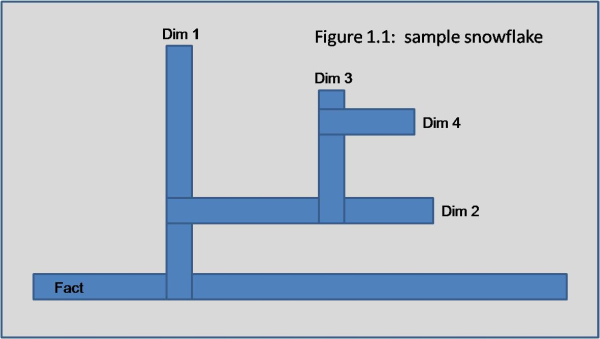
The Snowflake Schema

The MicroStrategy platform is designed to run on a data warehouse architected using a snowflaked data model.  For those unfamiliar with this term, snowflaked schemas are similar to the star schema concept except that they are allowed to have additional dimension tables joining directly off of other dimensional tables.  When one looks at the dimensions sprouting off of one another,  one might compare the structure to that of an actual snowflake’s crystals.

 fig11

So are there any advantages of using a snowflaking over the straight star schema model?

First off, lookup tables are a simple way of immediately taking advantage of snowflaking.   Say you have a dimension table called D_PRODUCTS and a field called PRODUCT TYPE which has only 4 distinct values.  Let’s say you require a list of PRODUCT TYPE’s like when you are creating a drop down for a filter on a report.   Without snowflaking, MicroStrategy will be forced to do a “select distinct PRODUCT TYPE from D_PRODUCTS” in order to pull the distinct product type values to display to the user.  With snowflaking, we can instead create a table called V_LOOKUP_PRODUCT_TYPE that snowflakes off of D_PRODUCTS, and whenever we need to pull a product listing, we instead only need to query a “SELECT * from V_LOOKUP_PRODUCT_TYPE” which will only contain the 4 values we want to display.   Although the solution without snowflaking probably is not that bad, it is still more expensive than with snowflaking, but can be even more expensive if D_PRODUCTS contains a large amount of data.

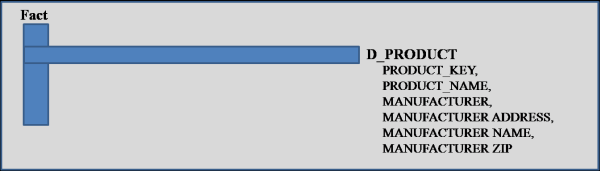
Secondly, snowflaking allows for more logical and efficient ways of storing data into hierarchies.   Using a star schema model without snowflaking requires that all dimension tables be flattened out and joined directly to our fact table(s).   So, let’s say we have a hierarchy which consists of various manufacturers and the products that they manufacture.   Here is an example of what a model without snowflaking might look like. 

 fig12b

And, with snowflaking:

 fig12c

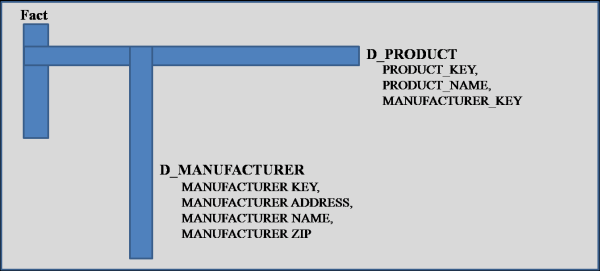
Notice that with snowflaking, we can now store manufacturers off as it’s own entity which can help organize data more logically.  Also, we reduce the size of D_PRODUCT, and only have to go to D_MANUFACTURER when we need to pull data about the manufacturer. 

Without snowflaking, we have two options for adding new attributes.  Either 1. add the attributes to existing dimension tables, or 2.  add new dimension tables and place the attributes there.  The first option eventually leads to unnecessarily long dimension tables which can be costly in terms of loading and query performance.   The second option might reduce the size of your dims, but also separates the dimension tables apart, so they can no longer be queried together unless joined to a fact table.   For example, if we split out D_PRODUCT and D_MANUFACTURER, each joined separately to our fact, then a report listing all products and their manufacturers, now must be queried by joining also to the fact table.    With a snowflaked schema, we can logically join dimension tables together to make up our hierarchies, and also limit the size of our dimensions, all without having to join to a fact table.  

I’m sure there are other advantages of using a snow flaked schema over the traditional star schema, such as the possibilities of simplifying ETL and EDW designs.   What are your thoughts on using the Snowflake Schema data model for analytics?

Automatic Column Recognition in MicroStrategy 9

Architect 9.x can automatically create attributes and facts in order to save time during the schema creation process. The facts and attributes are created based on data types, database column names, primary and foreign keys, and other schema creation heuristics. The user can define how attributes and facts are created when tables are added to the project by defining the automatic column recognition rules available in the MicroStrategy Architect Settings menu, by following the steps.

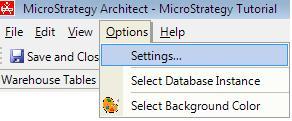
  1. Open the Setting menu, located under Options.
    Step 1
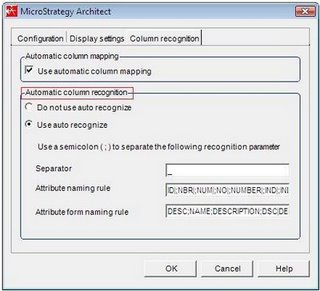
  2. Go to the Column Recognition tab.
    Step 2
  3. Do not use auto recognize option is used to disable the automatic creation of attributes and facts when tables are added to the project using Architect. Uncheck this radio button.
  4. Use auto recognize option is used to enable the automatic creation of attributes and facts when tables are added to the project using Architect. These are created based on the following schema creation heuristics and rules:
    • Separator: The character used as a separator in the database column names. For instance, a database column name such as USER_ID uses the undersocre character (_) as a separator.
    • Attribute naming rule: Database column name suffixes that identify that the columns should be mapped to a new attribute as the identity form. A semicolon (;) can be used to separate suffixes that are to be mapped to new attributes. It is also possible to define how the attribute name is created by using a vertical bar () to define what the suffix is replaced with in the resulting attribute name.
    • Attribute form naming rule: Database column name suffixes that identify that the columns should be mapped to a new attribute form.
  5. In addition to using these rules to define attributes and attribute forms, selecting the Use auto recognize option also employs other schema creation heuristics:
    • The automatic column mapping rules described in Automatically column recognition are employed to map columns to existing attribute forms that use the columns in their definitions.
    • An attribute is created for any column defined as a primary or foreign key, and the column name for the primary key is used to define the attribute name. The column name for the primary key is used to define the attribute name even if the primary key column is not included in the project.
    • Every column must be mapped to either a fact or an attribute. If none of the schema creation heuristics or the rules you define can determine whether to create a fact or attribute for the column, an attribute is created for the column.
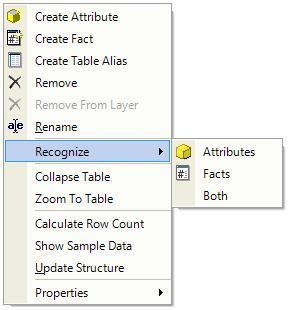
  6. Even when the option to not use auto recognize is selected, it is still possible to take advantage of the auto recognize feature on a table on table basis. Right click on the table in the Architect Project Tables View. Select Recognize > Attributes, Facts, or Both.
    Additional Step

Manual Mapping

In a previous post, I’ve warned about the not so automatically behavior of the automatic mapping. However, I can’t blame the manual mapping for the same degree of inconsistency. I mean, boy, that’s as manual as it gets!

Take a manually mapped attribute and have a look at its source tables. Now drop the attribute from one of these tables (on database and Catalog level) and try to run a report which used that table.

On the one hand, MicroStrategy knows from the attribute definition that it can include that table into the SQL. On the other hand, it should know from the table definition, as updated in the Warehouse Catalog, that the column is no longer there, but such a small detail doesn’t have enough force to deter the SQL Engine. So it simply writes the SQL as if nothing had happened, and the only error you get is from the database (i.e. a11.attribute_id does not exist).

So, if you aren’t doing this already, don’t forget to inform the manually mapped attribute that one of its source tables decided to discontinue their relationship, next time you indulge in such data model changes.