Very nice video posted about MicroStrategy 9. Must watch to know the new features and improvements over previous version.
Yearly Archives: 2009
MicroStrategy 9.0 Hotfix 1 goes GA
MicroStrategy 9.0 Hotfix 1 is now generally available (GA) on the MicroStrategy Download Site.
Defects and Enhancements addressed in MicroStrategy 9.0 Product Suite can be found in the ReadMe.
But…
I’m wondering: Why this HotFix was released too close from the 9.0 launch?
Well…
A HotFix is a FIX! Therefore the 9.0 version was released with a number of bugs that had required this fast paced HotFix.
Question:
May I stay with my 8.x version or upgrade to 9.0?
Look close to MSTR 9.0 improvements and ask yourself if you need this upgrade. If no, then stay calm and wait for a second hotfix.
Bye
Spool space error
Okay, so this is an old one, but I still find it useful.
If you can’t run a report because of a spool space error, and you can’t convince the DBA to give you a couple of gigabytes more, then you might want to go to the Report Editor, Data ->VLDB Properties -> Tables -> Intermediate Table Type and select True temporary table.
What this does is modifying the SQL so that instead of having a huge chunk of code (that would use up a lot of memory) it breaks the code into CREATE – INSERT bits that are far easier to handle. It also makes the SQL more readable by humans (this includes programmers).
By the way, this setting also comes to rescue when you get the “Database is terrified by the script and it can’t even begin to analyze it” error. I don’t have the specific error message at hand, but I know for sure that Teradata does this when the SQL code is all in one pass and is so large that it can be seen from the Moon.
Cold response to free MicroStrategy Reporting Suite
I’ve recived a confirned news about the lukewarm response to the free MicroStrategy Reporting Suite and MicroStrategy, Inc is getting desperate for License revenue. This is forced them to re-launch the free Reporting Suite. They have hired a battary of paid news sites, which is obvious with all BI product vendors. But the lukewarm response has forced them to relaunce the free suite once again after the initial launch. BTW, the price of v9 is strangely not much.
Logical views with MicroStrategy
Business intelligence architects have always relied on the Datawarehouse team to create database views or perform datawarehouse changes in order to construct the BI architecture. If something was not architected as desired, then the BI developers were forced to request these changes, and then wait for their completion before moving forward. Since MicroStrategy 8, BI developers have had the ability to create logical tables and table aliases to circumvent this process. This article will go through various examples on how this can be used on an implementation.
Lookup Tables and Reuse of Dimensions – The most obvious reason for requiring logical tables or aliases is for the creation of lookup tables or reuse of dimension tables. First off, the difference between an alias and a logical table is that an alias is an exact copy of a dimension table, and if the dimension table or alias changes then both will change. The logical table on the other hand is a custom SQL statement that utilizes any table available to the BI developer. Lets say we have a fact table F_FACT, that stores 3 products per transaction, but the data model only has one D_PRODUCT table. Aliasing allows us to alias D_PRODUCT into D_PRODUCT_1, D_PRODUCT_2, and D_PRODUCT_3, so that we now have 3 separate tables to join to F_FACT. Now, lets say that the 1st product is a laptop, the 2nd product is a battery, and the 3rd product is an AC Adapter. We could still join F_FACT to the 3 aliased product dims, but we also want only laptops to show up in D_PRODUCT_1, only batteries in D_PRODUCT_2, and only AC Adapters in D_PRODUCT_3. This is where logical tables can come in to play. First, lets create a logical table called D_PRODUCT_LAPTOPS which we create with the following SQL statement, ‘SELECT * from D_PRODUCT where PRODUCT_TYPE = “LAPTOP” ‘. Quite simply, we have created our own dimension table of laptop products without additional support from the EDW team.
Case Study: Using Logical Views to make a Fact table from a Dimension – Lets say we have a dimension table called D_EMPLOYEE with the fields employee_key, employee_id, employee_name, record_start_date, record_end_date, employee_start_date, employee_end_date, and organization.

Now, lets say we want to be able to count Active and Terminated employees from a fact. Our first problem is that D_EMPLOYEE is a type 2 dimension, so we need to pull only the latest record on this dimension. For the metric, we have the option of building the count of active and terminated employees either on the fact table or by building a fact object in MicroStrategy. For this demonstration, we will build the counts on the fact itself.
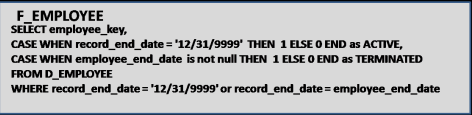
In order to pull the latest record from D_EMPLOYEE, we will use the following WHERE condition: WHERE RECORD_END_DATE = ‘12/31/9999′ or RECORD_END_DATE = EMPLOYEE_END_DATE which will pull the latest record for each employee.
For the facts, we will add the following fields to the SELECT part of the query: CASE WHEN RECORD_END_DATE = ‘12/31/9999′ THEN 1 ELSE 0 END as ACTIVE AND CASE WHEN EMPLOYEE_END_DATE is not null THEN 1 ELSE 0 END as TERMINATED.
The Final Logical table will look as follows, and now we have a new fact table.
Case Study: The POOL technique – Once you start to use Logical table , you will start to see that this can be a very powerful tool that can accomplish a great deal, as long as performance allows it. Please note that these table Views just serve as queries on the database, and are not materialized in anyway. What I often do after creating a complicated logical view is run it through a query tool like Toad. If it does not return results immediately, then I send the query off to our DBA to see what they can do.
The POOL technique (which I’ve named it) is actually a technique for developing complex SQL reports when there are no data warehouses or BI Tools. The point here is that you can use this technique to develop a complex piece of SQL, and then use that SQL in a MicroStrategy logical view, so you can build metrics and attributes on top of that SQL. This technique is also great for developing Freefrom SQL queries in MicroStrategy.
The concept is simple. First develop a query that gets you as far as you can with the base tables, and then use that query as the base table for a new query. Repeat until you have what you need. One other point is to try to avoid Sub Selects as much as possible because they can seriously slow down performance.
Lets use the table D_EMPLOYEE above and the logical view F_EMPLOYEE as our basis. The report we want to create is a list of active employees, their current organization, and the number of organizations they’ve been in. If the number of organizations is greater than 5 then we want to mark this record as a MOVER.
First, we build SQL to get as far as we can. I don’t put the number of Organizations in this query for illustrative purposes, but do you see how to calculate number of Organizations in this query without a sub Select?

Next we use the statement just created as the base table for the next select, and name this base table POOL. We then create a query based on POOL which now calculates the Number of Organizations.
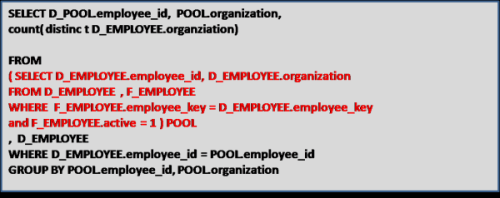
Now we use the SQL statement above for our base table, and call that table POOL2. We do this to add the MOVER field to the report.
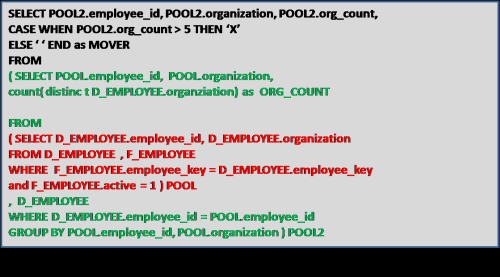
We can keep going if we had more complex requirements, but the point is that this technique can be used to develop complex queries, which we can then plop into a MicroStrategy logical tables. Maybe we will create an attribute called MOVER? The options are now far greater with logical tables.