Troubleshooting steps
1. Check the report SQL generated in different environments (PROD, UAT and DEV). Match the SQL generated. Technically they *must* match. If they are NOT matching, you need to correct your attribute definition and/or parent-child relationship. FYI, Tedatada is not so forgiving for mismatched column types in database and as declared in attribute form definition.
2. Check the Load on database server. It may be offline, too much loaded with requests.
3. Job priority in the Server can 32432432a report in queue for long/infinite. Check MicroStrategy System Monitor under Project Source Administration.
4. Verify that you SQL is being run against the correct database. Check the Project DB Instance.
5. Your schema object definition is up to date. Try updating Schema.
6. Non MicroStrategy cause: Some Web Server load balancer can made to time out a query/request if not resolved under a stupulated time. Check Load Balance team.
Monthly Archives: January 2013
Bursting is a feature in MicroStrategy Distribution Services 9.3 that generates page-by slices and stores results to separate files via subscriptions
Reports and Report Services Documents can use the bursting feature if they are using page-by view filters, and files produced with bursting can use macros to generate unique, individual file names.
- Choose a suitable Report or Report Services Document and create a new subscription
- Under the “File” heading, select “Add file subscription”
- Directly under “File Name” click the button labeled “Burst…”
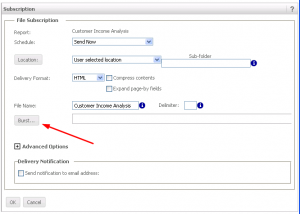
4.The selector boxes will show the Page-By attributes in the left box. Move attribute from the “Available” box to the “Selected” box to burst according to those attributes. Selected Attributes will show in the bar above the selector
5. The file name can be defined in the File Name blank using the following shortcuts:
- Bursting Attribute: {[Attribute Name]@[Attribute Form]}
- Date: %%Date%% or {&Date}
- Time: %%Time%% or {&Time}
- Recipient Name: %%RecipientName%% or {&RecipientName}
- User Login: {&UserLogin}
- Subscription Name: {&Subscription}
- Project Name: {&Project}
- Prompt N: {&Prompt#&}
- Content Name: {&ContentName}
- Content Details: {&ContentDetails}
6. After filling in the remaining required File Subscription options, click OK to accept these options