Metadata
Metadata Browser v3.01
Aug 19th
Posted by Sorin Suciu in Metadata
As promised earlier this year, Senthil Raj – author of the celebrated Object Tracking Tool, has kindly agreed to merge his application with Metadata Browser.
After much coding and testing, time has come to unveil this brand new application, which you will surely find very useful. Click here to download it.
You can also download the manual here.
So, what’s new?
- Well, there’s obviously the new and more powerful than ever Object Tracker. You can use it both to extract a simple list of objects in your project, and to generate documentation such as format, alias, formula, dimensionality, transformation and condition for metrics; lookup table, forms, child & parent relationships for attributes, etc. It behaves more or less like the Project Documentation Wizard from Desktop, with the huge difference that you can actually run all sorts of analysis on the Excel files generated by Metadata Browser, and you simply can’t do it with the HTML files generated by Desktop.
- Another upgrade that you requested is the LDAP and NT authentication modes. They are now available at login.
- Talking about the connection window, Metadata Browser is now capable of reading the most recent username that you have used for a certain project, from the registry. This will make it easier for you to login.
Enjoy!
Metadata Browser v2.0
Feb 10th
Posted by Sorin Suciu in Metadata
While the merge with Object Tracking Tool is still in development, I am proud to introduce the new and improved version of Metadata Browser, which you can download here: MBsetupV2.0.exe
Improved Documentation Tool
New properties are now retrieved for common object types:
- Metrics: dimensionality, condition, transformation, smart (yes/no)
- Attributes: form, lookup table, child & parent relations
- Filters: expression
- Prompts: item list
Change Journal Tools
This new function only works with MicroStrategy version 9.0 or higher and it either shows the Change Journal entries for a single object or for all the objects in a particular folder.
God Mode
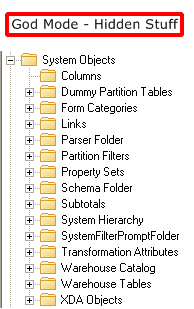
If you have admin rights you can connect using “God Mode” and thus gain access to hidden system files. An interesting use (found during the test phase) is to navigate to System Objects\Columns and make dependency searches directly on Columns.
This is a read only application. Using it won’t cause any changes to your Metadata.
Application(s) is provided “as is” and MicroStrategy101 and individual application author(s) disclaim all warranties, whether express or implied, with respect to all provided items, including all warranties of merchantability, fitness for a particular purpose, accuracy, systems integration, title, satisfactory quality and non-infringement. MicroStrategy101 and individual application author(s) do not warrant that use of the provided items or any portion thereof will be uninterrupted or error-free, or that the provided items or any portion thereof will meet any need or requirement of licensee.
ScanMD for MicroStrategy 9 launched
Apr 1st
Posted by Ashish Tiwari in Metadata
Even if you don’t have version 9 of MicroStrategy, just get it. ScanMD update has come up after ages (not like frequent HF, SP or GA of MicroStrategy). It is toooooo good, even though I haven’t used yet. Have a look at the tech-note to download new version.
The biggest problem with ScanMD is it would show you tons of errors even though there is just ONE discrepancy in your metadata. So, weeding out one error is a mammoth task. If you fixed a false error, you schema would go for toss forever and even MicroStrategy can’t repair it.
Look at the last screen shot in tech-note which says just 4 errors. My God! Just 4. I have ran ScanMD on fresh metadata and found 100+ error. Don’t believe it. Just install a fresh v8 and run the older version of ScanMD and you will see. Good job Engine team.
Scan MD and MD Doctor
Mar 19th
Posted by Ashish Tiwari in Metadata
While working on metadata, there are chances that MD may get corrupt. Only reason for corruption of MD is MicroStrategy programmers NOT you (No way), unless you have manually fiddled with the metadata. One small change can messed the metadata forever, some time impossible to recover.
There are two types of discrepancies in MicroStrategy
- Logical
- Physical
ScanMD is used to recover from Logical discrepancies, where as MD Doctor is used for Physical discrepancies. Why these discrepancies creep????? Like any software application, there are bugs in MicroStrategy, dandling code (a situation never programmed), etc. such a thing is the main reason behind discrepancies.
Logical discrepancies: Using desktop you can create/delete several objects. Sometime deletion of the objects doesn’t get reflected in metadata and they get deleted in metadata but still available in front-end. Now such a mis-match in case of schema objects is simply killing, because it won’t let you update schema at all. Imagine not having ability to update schema. Using ScanMD is not an easy task. ScanMD shows 95% for false errors as discrepancies. Engine team of MicroStrategy, Inc. needs to update the tool. For one error, you may have to go through 100+ errors. You can verify the error easily by having project opened side by side. NEVER EVER FIX A FALSE ERROR.
Physical discrepancies: There are not just 10 DSS tables that make metadata, there are several more database objects that are created for metadata; e.g., triggers, views. If any of these objects are messed up, you have a physical discrepancy in your project. I’ve never worked on MD Doctor and look forward some information from you.
This blog is not exhaustive and 100% as I certainly do not believe the bugs in MicroStrategy are only source of discrepancies in metadata.
Report Service Documents
Dec 21st
Posted by Sorin Suciu in Metadata
Every time we rename an object, MicroStrategy updates that object’s name in all of its dependants. That’s true, right?… Or is it?
Well, it’s almost true. This fails when the object whose name we change is referenced as a data field in a Document.
Tip. A data field is a text field that is created either by dragging it from the Dataset Objects area into the Layout area, or by creating it manually and then typing the object’s name. The name should appear between braces ({}) and should be also surrounded by brackets ([]) if it contains spaces or special characters.
Now, because the data field does not have an object ID, MicroStrategy is completely oblivious if the object referenced in it is renamed, thus the document will not run. Strangely enough, it performs fine if the object was moved to a different folder.
The way to avoid such mishaps is to do a dependence check when renaming a Metric or Attribute and see if they are being used as data fields inside a Document. All it takes then is typing the new name into the text box.
Of course, if the object is used in the Document as part of a grid, then the Metadata does its job very well.
Update: This issue is fixed in version 9.


Recent Comments